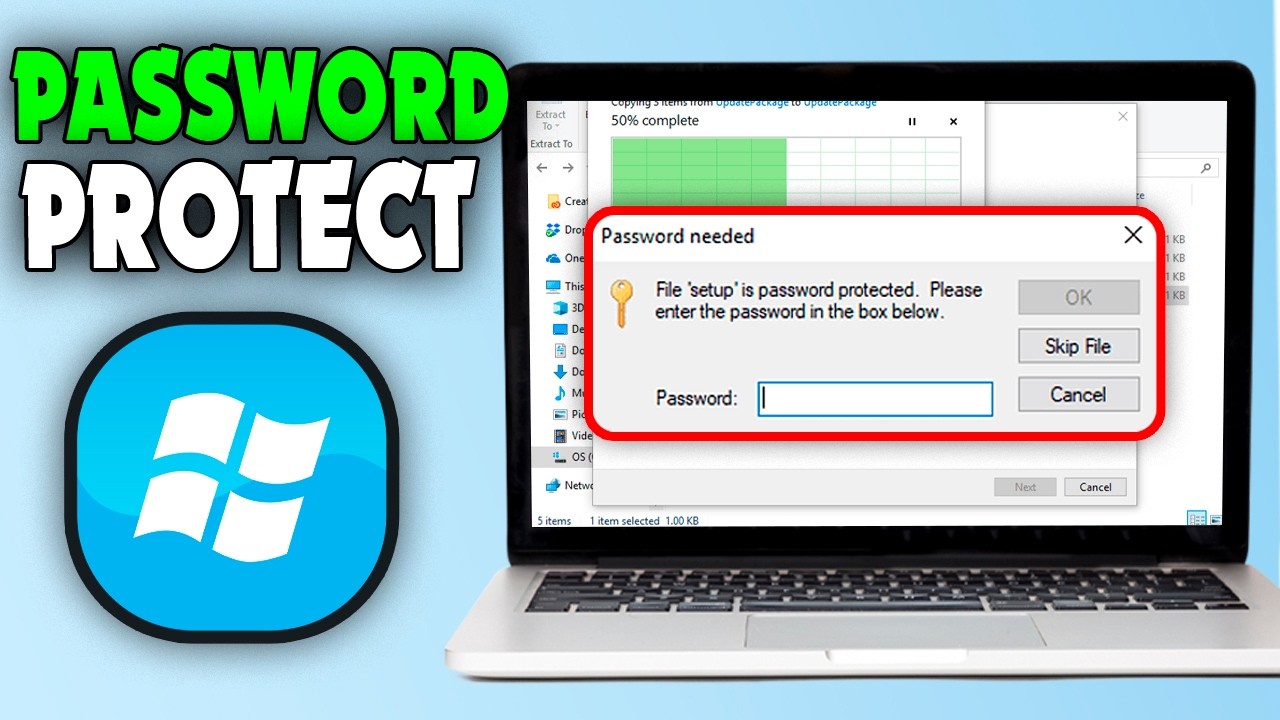
In 2026, digital security has become one of the most important aspects of using a computer. In Nigeria, more people now rely on laptops for business, school, freelancing, content creation, trading, and remote work.
However, most users still do not properly protect their files and folders, leaving sensitive data exposed to theft, viruses, hackers, or even physical access from other people.
This guide explains in detail how to password-protect your files and folders on a Windows laptop using free and advanced methods that work in 2026.
Why You Must Protect Your Files in 2026
Many people think a laptop password is enough protection. Unfortunately, this is not true.
If someone gains access to your laptop, they can still open your documents, photos, videos, and business files unless they are encrypted or password-protected.
Types of files you should protect:
- Banking documents
- School assignments and certificates
- Business records and invoices
- Client data and contracts
- Personal photos and videos
- Password lists and login details
- Crypto wallets and trading files
For better digital safety habits, read:
5 Everyday Tech Habits Nigerians Should Master
Understanding File Protection vs Encryption
Before learning the methods, it is important to understand the difference:
- Password Protection: Requires a password before opening files
- Encryption: Converts files into unreadable data without a key
Encryption is more secure than simple password locking.
Method 1: Windows Built-in File Encryption (EFS)
Windows provides a built-in encryption system called Encrypting File System (EFS).
Steps to use EFS:
- Right-click the folder
- Select Properties
- Click Advanced
- Check “Encrypt contents to secure data”
- Click Apply
- Select “Encrypt folder and subfolders”
Advantages:
- Free
- Built into Windows
- No software needed
Disadvantages:
- Only works on Windows Pro editions
- Tied to user account
Method 2: Password-Protect Files Using 7-Zip
One of the most popular methods worldwide is using 7-Zip compression software.
It allows you to create encrypted archive files that require a password before opening.
Steps:
- Download 7-Zip
- Right-click folder
- Select “Add to Archive”
- Set password
- Choose AES-256 encryption
- Click OK
Why this method is powerful:
- Military-grade AES encryption
- Works on any Windows version
- Easy to use
- Good for sharing files securely
Official site:
7-Zip Official Website
Related reading:
How to Format Your Phone Safely
Method 3: BitLocker Full Drive Encryption
BitLocker is one of the strongest security tools available on Windows laptops.
What it does:
It encrypts your entire drive so no one can access your files without a password or recovery key.
Steps:
- Open Control Panel
- Search BitLocker Drive Encryption
- Select your drive
- Click Turn On BitLocker
- Create a strong password
- Save recovery key safely
Benefits:
- Full disk protection
- Prevents offline hacking
- Used by businesses and governments
Learn more:
Microsoft Security Documentation
Method 4: OneDrive Personal Vault (Cloud Security)
Cloud storage adds extra protection beyond your laptop.
OneDrive Personal Vault provides secure storage with extra authentication.
Features:
- Two-step verification
- Encrypted cloud storage
- Mobile access
- Automatic backup
Official link:
OneDrive Personal Vault
Method 5: Using Hidden Folders (Basic Protection)
This method is not true security but adds privacy.
- Right-click folder
- Select Properties
- Enable Hidden attribute
Combine with encryption for better protection.
Method 6: Using Antivirus with File Protection
Modern antivirus software helps protect files from ransomware and malware attacks.
Recommended tools:
- Windows Defender
- Kaspersky
- Avast
- Bitdefender
Visit:
Microsoft Windows Official Site
How to Create Strong Passwords
A weak password can break all your protection.
Strong password rules:
- At least 12–16 characters
- Mix letters, numbers, symbols
- Avoid names and birthdays
- Do not reuse passwords
Common Mistakes Nigerians Make
- Using simple passwords like 1234
- Not backing up files
- Sharing sensitive folders
- Ignoring Windows updates
Read:
How to Avoid Online Scams
Advanced Security Tips (Very Important)
- Always enable firewall
- Use VPN on public Wi-Fi
- Update Windows regularly
- Backup files to external drive
- Use cloud storage for duplicates
Related:
Top Android Security Features
Why Nigerians Must Take Digital Security Seriously
With the rise of online business, freelancing, crypto trading, and remote work in Nigeria, data protection is now essential.
Cybercrime is increasing, and losing data can destroy a business or career.
If you earn online, read:
Comparison Table: File Protection Methods
| Method | Security Level | Difficulty | Best For |
|---|---|---|---|
| Windows EFS | Medium | Easy | Personal files |
| 7-Zip Encryption | High | Easy | Sharing files |
| BitLocker | Very High | Medium | Full device security |
| OneDrive Vault | High | Easy | Cloud backup |
FAQ
Can I password-protect folders without software?
Yes, but software like 7-Zip offers stronger protection.
What happens if I forget my BitLocker password?
You may need the recovery key to access your files.
Is cloud storage safe?
Yes, if you use trusted platforms like Microsoft OneDrive.
Conclusion
Protecting your files and folders in 2026 is essential for every Windows user in Nigeria. Whether you choose BitLocker, 7-Zip, or cloud protection, the goal is to prevent unauthorized access and secure your digital life.
Start applying these methods today and improve your overall cybersecurity habits for a safer online experience.