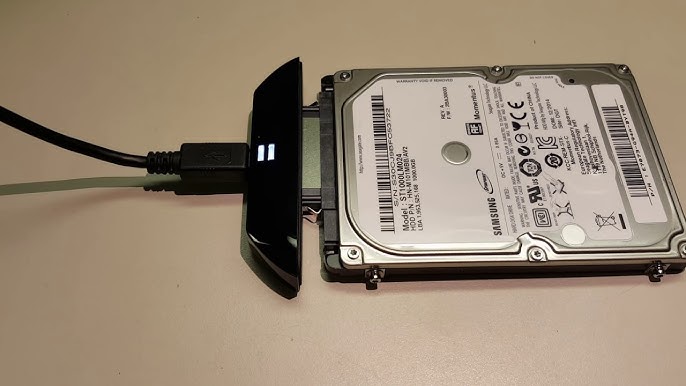
If your laptop suddenly becomes slow, freezes, makes strange clicking sounds, or refuses to boot, there is a high chance your HDD (Hard Disk Drive) is failing. A problematic HDD can lead to data loss, software errors, and total system failure — so acting fast is important.
In this article, you’ll learn the signs of HDD failure, what to do immediately, how to fix errors, and when to replace the drive.
This guide is especially useful for Nigerian users dealing with old UK-used laptops, which often develop HDD faults after long usage.
Signs Your Laptop HDD Has a Problem
Here are the most common symptoms:
-
Slow boot time
-
Frequent freezing or crashing
-
Clicking or grinding noises
-
“Operating system not found” errors
-
Blue screen (BSOD)
-
Files refusing to open or disappearing
If your laptop shows any of these signs, follow the steps below.
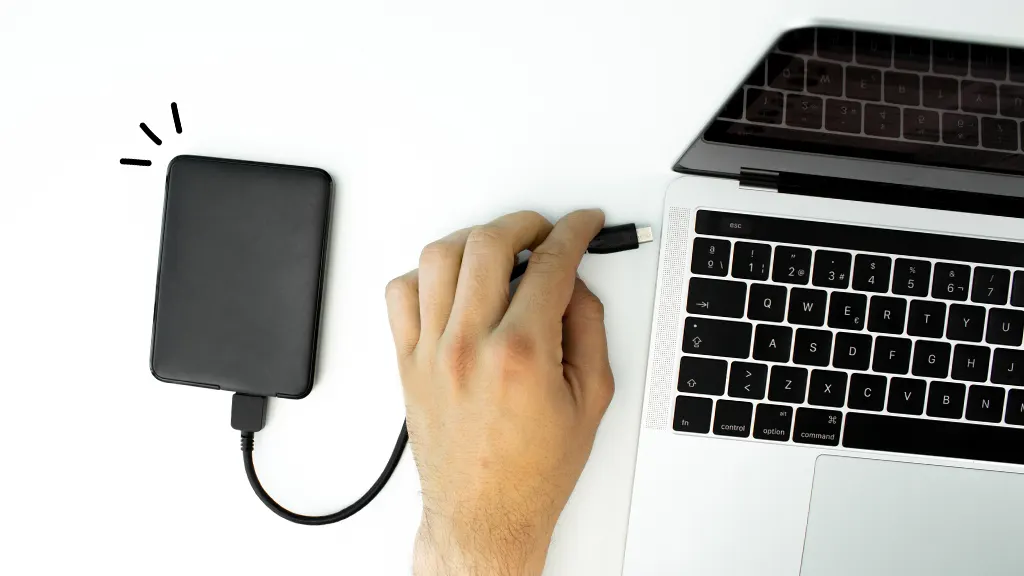
1. Back Up Your Important Files Immediately
The first and most important step is to save your data before the HDD completely fails.
You can back up using:
-
External hard drive
-
USB flash drive
-
Cloud storage (Google Drive, OneDrive, Dropbox)
-
Another laptop via LAN file transfer
Tip: If the HDD is clicking loudly, copy only important documents first because the drive may stop working anytime.
For help understanding laptops and storage upgrades, check our reviews on Infolandia such as the reliable Dell Latitude E3350 here:
👉 https://www.infolandia.com.ng/dell-latitude-e3350-review-specs-price-and-performance/
2. Run HDD Diagnostic Tools
These tools help you check the health of your hard drive:
Windows Tools
-
CHKDSK (fixes bad sectors)
-
SFC Scan (repairs corrupted system files)
-
Disk Error Checking Utility
Manufacturer HDD Test Tools
-
Seagate SeaTools
-
Western Digital Data Lifeguard
-
Samsung Magician
These are free and global brands recognized by professionals.
3. Check for Bad Sectors and Fix Them
You can fix bad sectors using:
Run this in Command Prompt as Administrator.
If the disk has too many bad sectors, replacing the HDD is the only solution.
4. Replace the HDD With an SSD
HDDs are mechanical and fail easily.
SSD (Solid State Drive) is faster, quieter, more durable, and highly recommended.
Benefits of upgrading to SSD:
-
Your laptop becomes 3× to 6× faster
-
Boot speed improves drastically
-
No noise or vibration
-
Better shock resistance
Most Nigerian users upgrade successfully on common laptops like HP ProBook 6470B and EliteBook 840 G6.
Check review here:
👉 https://www.infolandia.com.ng/hp-elitebook-840-g6-review/
5. Reinstall Windows or Clone Your Old HDD
After installing a new SSD:
Option 1: Fresh Windows Installation
This is the cleanest method.
Option 2: Clone Your Old HDD
If your HDD is still readable, you can copy the entire content to your SSD using tools like:
-
Macrium Reflect
-
EaseUS Todo Backup
-
AOMEI Backupper
Cloning saves your apps, files, and settings.
6. Keep Your Laptop Cool and Clean
Overheating shortens HDD lifespan.
Make sure to:
-
Clean laptop vents regularly
-
Use a cooling pad
-
Avoid placing laptop on a bed or pillow
7. When to Replace the HDD Immediately
Replace the HDD without attempting repair if:
-
You hear click-click sounds (mechanical failure)
-
System won’t detect the HDD
-
BIOS fails to read the storage
-
Laptop freezes constantly even after fixes
At this stage, repair is not possible.
Internal Useful Links (Infolandia Inbound Links)
These articles help users looking for laptop alternatives or related tech tips:
-
Samsung Galaxy A55 5G Review
👉 https://www.infolandia.com.ng/samsung-galaxy-a55-5g-review/ -
How to Use Google Analytics to Grow Your Online Business
👉 https://www.infolandia.com.ng/how-to-use-google-analytics-to-grow-online-business/ -
CapCut Review (2025)
👉 https://www.infolandia.com.ng/capcut-review-2025-the-best-free-video-editing-app/ -
HP ProBook 6470B Review
👉 https://www.infolandia.com.ng/hp-probook-6470b-review-in-nigeria/
Internal Category Links (for SEO structure)
To help users navigate your site better:
-
Make Money Online
👉 https://www.infolandia.com.ng/category/make-money-online/ -
App & Product Reviews
👉 https://www.infolandia.com.ng/category/app-product-reviews/ -
Nigerian Life
👉 https://www.infolandia.com.ng/category/nigerian-life/ -
How-To Guides
👉 https://www.infolandia.com.ng/category/how-to-guides/
Outbound Links for Authority
These links improve SEO and E-E-A-T:
-
Microsoft Official HDD Troubleshooting
(you don’t need to add URL in content, WordPress will turn it into a link automatically) -
Google Drive Backup Facts
-
Western Digital Hard Drive Health Documentation
Conclusion
A failing HDD is a serious issue, but you can still save your files and fix your laptop if you act quickly.
Back up your data, run diagnostics, and consider upgrading to an SSD for better performance and long-term reliability.
If your HDD is already too damaged, replacing it is the safest option.