But popularity alone does not make an app good.
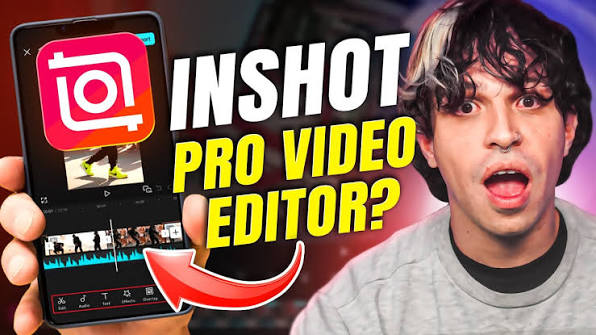
The real question is this: Is InShot actually worth using in 2026?
I have always liked mobile editing apps that do not make simple editing unnecessarily complicated. When I want to trim a clip, add captions, put music underneath it, resize the video for social media and export it, I do not necessarily want a desktop-style editing interface with dozens of menus.
That is where InShot makes an interesting case for itself.
InShot combines video editing, photo editing and collage tools in one mobile app. Its current feature set includes trimming and merging, speed control, keyframe animation, chroma key, picture-in-picture, transitions, filters, stickers, music, voice-over, auto captions, AI speech, background removal and more. It also supports high-resolution exports, including 4K at 60fps on supported devices. Google Play’s current InShot listing confirms these features.
So, is all of that enough to make InShot one of the best video editors for phone users?
In this InShot review, I will look at what the app does well, where it falls short, its free and paid versions, AI features, export quality, watermark, performance, suitability for Nigerian creators, content creators, students and small businesses, and whether I think paying for InShot Pro makes sense.
My short answer: InShot is worth using if you want a relatively easy mobile editor that can handle everything from simple social media clips to surprisingly advanced short-form videos. However, professional editors who need a more complex timeline, extensive audio control or advanced desktop-style workflows may eventually need something more powerful.
What Is InShot?
InShot is a mobile video and photo editing application available on Android and iOS. It is designed primarily around making content creation easier on smartphones and tablets.
Unlike some professional editing applications that can feel intimidating when you first open them, InShot puts many common editing functions in an accessible interface.
You can import a video, cut unwanted sections, arrange clips, add text, add music, change the aspect ratio and export the finished project without needing to understand professional video-editing terminology.
That simplicity is one of InShot’s biggest advantages.
At the same time, the app has gradually added more advanced tools. The current app listings include keyframe animation, chroma key, picture-in-picture, speed curves, smart tracking and AI-powered tools. The official App Store listing also lists AI captions, AI speech, background removal and other creator-focused features.
In other words, InShot is no longer just a basic app for cutting videos.
It is trying to occupy the middle ground between an extremely simple mobile editor and a more advanced content-production application.
Who Is InShot Really For?
Before deciding whether InShot is worth using, it helps to understand who benefits most from it.
I would put the following users near the top of the list:
- YouTube Shorts creators
- TikTok creators
- Instagram Reels creators
- Facebook video creators
- Small business owners
- Students creating school or presentation videos
- Freelancers producing short promotional videos
- Bloggers adding video to their content strategy
- People creating WhatsApp Status videos
- Anyone who wants to edit videos without using a computer
It is particularly useful if your content is primarily short-form.
For example, imagine you record a product demonstration on your phone. You can remove the boring beginning, add a title, place captions over your speech, add background music, insert another clip and export the result for social media.
You do not have to transfer the footage to a laptop first.
That matters in Nigeria, where many creators rely heavily on smartphones for content creation. A capable phone plus a good editing application can be enough to start creating useful content without immediately buying a powerful computer.
If you are still deciding what kind of smartphone is suitable for content creation, you may also want to read our guide on phone requirements for video editing. Your editing experience depends heavily on the hardware underneath the app.
InShot’s Main Video Editing Features
1. Trim, Split and Merge Videos
These are the basic tools you will probably use most frequently.
InShot allows you to trim unwanted portions, split clips and combine multiple pieces of footage into one project.
This sounds basic, but it is exactly what many creators need.
Suppose you record a three-minute talking video but only want the useful 60 seconds. You can remove the unnecessary sections without opening a desktop editor.
You can also combine several clips into a single video. That makes the app useful for vlogs, tutorials, product demonstrations, event highlights and social media content.
2. Text and Stickers
Text is an important part of short-form video.
Many people watch social media videos without sound, while captions also help viewers understand what is happening quickly.
InShot lets you add text, emojis, stickers, fonts and animated elements. The current app listings also mention text templates and the ability to import fonts locally on supported versions.
This gives creators considerable flexibility.
You can create an opening title, identify a product, highlight a price, emphasize an important statement or add subtitles to spoken content.
3. Music and Voice-Over
InShot also provides tools for adding music, sound effects and voice-over recordings.
This is useful for creators who want to turn ordinary phone footage into something more polished.
For example, a small Nigerian business selling clothing could record several short product clips, arrange them in InShot, add background music, place product information on screen and record a short voice-over explaining how customers can order.
That entire workflow can happen on a phone.
If you are interested in online business and digital marketing, you can also see our guide on digital marketing in Nigeria for ideas on how digital content can support an online business.
4. Speed Control and Speed Ramping
Speed control is another feature that makes InShot more capable than a basic video cutter.
You can speed footage up or slow it down. Current versions also support speed curves and speed ramping, giving creators more control over how the speed changes during a clip.
This can be useful for travel videos, sports clips, tutorials, product demonstrations and cinematic transitions.
You do not have to use speed effects everywhere, though.
One mistake I see with mobile editing is adding an effect simply because the editor provides it. A clean video with good pacing will usually be better than a video overloaded with transitions and effects.
5. Keyframe Animation
Keyframes are where InShot starts becoming much more interesting.
Keyframe animation allows you to change an element’s position or other properties over time.
For example, you can make text move across the screen instead of simply appearing in one position.
You can also use keyframes for picture-in-picture elements and other animated objects.
This gives you more creative control without forcing you into a full desktop editing environment.
6. Picture-in-Picture
Picture-in-picture allows you to place one video layer over another.
This is particularly useful for reaction videos, tutorials, demonstrations and commentary content.
Imagine recording your phone screen while also recording yourself explaining what you are doing. Picture-in-picture can help you combine those elements into one video.
That is also useful for educational creators.
If you create tutorials about technology, apps or websites, you can use one layer for your screen recording and another for supporting footage.
7. Chroma Key
InShot also supports chroma key, which allows creators to work with green-screen footage.
This is not something every casual user needs, but it gives the application additional flexibility.
You could record yourself in front of a suitable green background and replace it with another visual.
For a mobile application, having this capability is a useful bonus.
InShot’s AI Features
This is one of the biggest areas where InShot has evolved.
Modern versions of the app include several AI-powered features designed to reduce repetitive editing work.
These include auto captions, AI speech, background removal, AI effects, smart tracking and other AI-assisted tools. The exact availability of some features can vary depending on the platform, version and subscription.
Auto Captions
Auto captions are particularly useful for short-form content.
Instead of typing every sentence manually, you can use speech-to-text functionality to generate captions.
You should still check the result before publishing.
Automatic transcription can misunderstand names, accents, technical terms or words spoken quickly. Nigerian English, local names and some Nigerian expressions may also require manual correction.
That is not necessarily an InShot problem. Speech recognition systems generally need checking.
AI Speech
InShot also offers AI speech and text-to-speech capabilities.
This can be useful when you want narration without recording your own voice.
However, I would not recommend relying on synthetic narration for every type of content. If your brand depends on personality and trust, your own voice can still be more engaging.
Background Removal
Background removal is another convenient AI feature.
You can use it to separate a subject from its background in supported workflows.
This could help when creating product content, promotional graphics, thumbnails or social media videos.
Smart Tracking
Smart tracking can help text or stickers follow an object as it moves.
That can save considerable manual work compared with trying to reposition an element frame by frame.
For creators making fast-paced social media content, features like this can make mobile editing much more practical.
How Good Is InShot for TikTok, Reels and YouTube Shorts?
This is probably where InShot makes the most sense.
Short-form platforms require fast editing.
You may record several clips, remove mistakes, add captions, adjust the aspect ratio, add music and publish the final video within a short period.
InShot handles this workflow well.
The app supports different aspect ratios, making it possible to prepare content for different social platforms. Its official listings specifically mention sharing workflows for platforms such as YouTube, Instagram and WhatsApp.
For creators who mostly make vertical videos, this is a major advantage.
You can record on your phone, edit on the same phone and publish without transferring files to another device.
That simplicity is easy to underestimate.
Is InShot Good for YouTube?
Yes, but with an important qualification.
InShot is excellent for YouTube Shorts and simple YouTube videos.
For a basic talking-head video, tutorial, product review or short vlog, it can do a lot.
However, if you are producing long videos with multiple audio tracks, complicated timelines, extensive color grading, advanced effects and lots of footage, you may eventually want a more advanced editor.
That does not make InShot bad.
It simply means that different editing applications are designed for different levels of production.
If your goal is to start creating YouTube videos using only your smartphone, InShot can be a sensible starting point.
You can also read our guide on AI tools for creating YouTube videos if you are building a broader mobile content workflow.
InShot for Nigerian Content Creators
This is where I think InShot deserves more attention.
You do not need an expensive computer to start producing useful video content.
A reasonably capable smartphone, enough storage, a stable workflow and an editing app such as InShot can take you surprisingly far.
Think about the number of businesses operating primarily through Instagram, Facebook, TikTok and WhatsApp.
A fashion seller can create product videos.
A food vendor can create cooking clips.
A phone seller can create comparison videos.
A freelancer can create promotional videos for clients.
A teacher can create short educational lessons.
A blogger can turn written articles into short video explainers.
That is why mobile video editing matters.
If you are looking for other ways to build digital skills, our guides on learning graphic design from home and learning data analysis in Nigeria are also worth exploring.
InShot Free Version: What Do You Get?
One of the biggest reasons people try InShot is that you can start without paying for the application.
The free version provides access to many core editing tools.
You can edit videos, add text, use transitions, work with music and perform many everyday editing tasks.
However, the free experience comes with limitations.
Advertising and paid editing materials are part of InShot’s current business model, and the paid version provides access to premium materials while removing the watermark and advertisements.
For someone experimenting with video editing, the free version can be enough to decide whether the app fits your workflow.
I actually think that is the right approach.
Do not subscribe immediately just because an app has a Pro button.
Use the free version first.
Edit several real projects.
Then decide whether the limitations are affecting your work.
What About the InShot Watermark?
The watermark is one of the most noticeable limitations of the free version.
If you are creating professional-looking content for a business or personal brand, you may not want an editor’s branding sitting on your finished video.
InShot’s current App Store information states that an InShot Pro subscription removes the watermark and advertisements automatically.
That makes the paid version considerably more attractive for people producing content regularly.
For casual videos that you are only sharing with friends or family, the watermark may not bother you.
For client work, business marketing or a serious creator brand, it can become an unnecessary distraction.
How Much Does InShot Pro Cost?
This is one area where I would avoid relying on an old blog post that gives you one fixed price.
InShot’s subscription and purchase options can vary by platform, region and offer.
For example, the current App Store listing shows separate monthly, yearly and lifetime purchase options, alongside individual paid materials.
Therefore, if you are in Nigeria, the safest approach is to open the official InShot listing on your device and check the price displayed to your account before paying.
Do not assume that a price quoted in an old review from another country is the amount you will pay.
Also remember that app subscriptions can automatically renew. Apple’s current listing specifically explains that subscriptions renew unless auto-renewal is turned off according to the platform’s subscription settings.
Is InShot Pro Worth Paying For?
For me, the answer depends on how frequently you edit.
InShot Pro is worth considering if:
- You create videos regularly.
- You dislike watermarks.
- You want fewer interruptions from advertising.
- You need premium effects, filters, stickers or editing materials.
- You use InShot for business content.
- You edit videos for clients.
- You create content for YouTube, TikTok, Instagram or Facebook consistently.
You may not need Pro if:
- You only edit videos occasionally.
- You are still learning video editing.
- You do not mind the watermark.
- You mainly need trimming and basic text.
- You are simply experimenting with content creation.
My advice is simple: use the free version first and let your actual workflow determine whether Pro is worth paying for.
InShot Export Quality
Export quality is extremely important because a video can look excellent inside the editor and still disappoint after export.
InShot currently supports high-resolution video export, including 4K at 60fps on supported devices and workflows.
That is impressive for a smartphone editor.
However, there is an important distinction between supporting 4K export and making a 4K project worthwhile.
If your original footage was recorded at a low resolution, exporting it at 4K will not magically create genuine detail.
Likewise, your phone needs enough processing power and storage to handle demanding projects comfortably.
If you are planning to edit heavily on your phone, our article on phone requirements for video editing can help you understand what hardware matters.
How Much Storage Does Video Editing Need?
This is another issue Nigerian smartphone users should take seriously.
Video files can become very large.
You may have your original camera files, screen recordings, exported versions, downloaded music, project assets and multiple drafts sitting on the same phone.
Before long, your storage can become crowded.
We have covered this problem in detail in why phone storage keeps filling up, including practical ways to manage the problem.
Do not wait until your phone has almost no free space before dealing with storage.
Editing applications need room to work, and insufficient storage can make the entire experience frustrating.
InShot Performance: Does It Need a Powerful Phone?
InShot is designed for mobile devices, but that does not mean every phone will provide the same experience.
A basic phone may handle short 720p or 1080p projects reasonably well but struggle with long high-resolution projects, multiple layers or demanding effects.
A more powerful phone with sufficient RAM, a capable processor and plenty of free storage will generally provide a smoother experience.
This is especially important if you want to use AI features, high-resolution footage, picture-in-picture layers or 4K exports.
If your phone frequently freezes during editing, crashes applications or runs out of storage, changing editing apps may not solve the underlying hardware problem.
Sometimes the phone itself is the bottleneck.
InShot vs Professional Desktop Editors
It is tempting to ask whether InShot can replace professional desktop software.
For most serious desktop editing workflows, I would say no.
But that is not really the right comparison.
InShot’s biggest strength is convenience.
You can edit immediately on your phone.
You do not need a large monitor, a mouse, a powerful computer or a complicated project-management system.
Desktop editors make more sense when you need deep control over a complex production.
InShot makes more sense when speed, simplicity and mobility matter.
For many social media creators, those advantages can be more important than having every professional editing feature available.
InShot vs Using No Editor at All
This comparison sounds strange, but it matters.
Many people delay content creation because they think they need a camera, laptop, expensive software and a perfect studio.
You do not.
A phone and a simple editing workflow can be enough to start.
InShot lowers the technical barrier between recording a video and publishing it.
That is valuable.
Of course, editing software cannot fix poor lighting, terrible audio or an unclear idea.
Good content still starts with the content itself.
InShot for Small Businesses
Small businesses may actually benefit from InShot more than casual users.
Consider a Nigerian business owner who sells phones, laptops, clothes, food or digital products.
Instead of hiring someone to create every simple social media video, the owner can learn a basic editing workflow.
Record vertically.
Keep clips short.
Remove mistakes.
Add captions.
Show the product clearly.
Include a simple call to action.
Export and publish.
That can be enough to create consistent content.
If your business sells digital products, you can also read our article about selling digital products with Selar in Nigeria. A good video can help you promote a digital product, course or downloadable resource, while a suitable payment platform can handle the transaction.
You can also visit the Infolandia Bookstore if you want to explore the digital resources and products we make available through the site.
Can You Make Money Using InShot?
InShot itself does not magically make you money.
The app is a tool.
The money comes from what you use the tool to create.
For example, you could use your editing skills to create:
- Short promotional videos for businesses
- Social media videos
- YouTube Shorts
- Product demonstration videos
- Educational videos
- Real estate promotional clips
- Event highlight videos
- Restaurant and food videos
- Personal-brand content
- Video advertisements
You could also combine video editing with other digital skills.
Our guide on content creation in Nigeria explores the broader opportunity around creating and monetizing digital content.
Likewise, if you are interested in freelancing, learning video editing can become one component of a wider service offering.
Using InShot for Educational Content
Students and teachers can also use the app.
A teacher could record a short explanation and add diagrams, captions or supporting clips.
A student could create a presentation video or project submission.
A technology educator could record a phone tutorial and use picture-in-picture to explain what is happening on screen.
The important thing is to keep the editing purposeful.
Adding ten transitions does not automatically make an educational video better.
Clear explanations usually matter more.
What I Like About InShot
After looking at what the app currently offers, these are the areas that stand out to me.
It is easy to understand
You can get started without spending hours learning the interface.
It has grown beyond basic editing
Keyframes, chroma key, picture-in-picture, speed ramping, tracking and AI features give experienced users more room to experiment.
It is excellent for short-form content
The workflow fits TikTok, Reels, Shorts, Facebook and WhatsApp-style content particularly well.
It works on mobile
This is perhaps the biggest advantage. Your phone can be both your camera and your editing workstation.
It has a generous feature set
The free version gives beginners a meaningful opportunity to test the application before deciding whether to pay.
What I Don’t Like About InShot
Ads can become annoying
The free version is supported by advertising, which can interrupt the experience.
The watermark can be a problem
If you are producing professional content, the watermark may make the free version less attractive.
Some of the best materials are paid
As with many modern editing apps, premium filters, effects, stickers and other resources are part of the paid ecosystem.
It is still a mobile editor
There is a limit to how much complexity you can comfortably manage on a phone screen.
AI output still needs checking
Automatic captions, background removal and other AI features can save time, but they are not perfect. Always review important content before publishing it.
Is InShot Safe to Use?
InShot is distributed through official Android and Apple app stores.
The current Google Play listing identifies advertising and in-app purchases and provides a developer-provided data safety disclosure. It states that the app may collect personal information, photos and videos and other data, and that data is encrypted in transit.
As with any application that handles personal photos and videos, you should still pay attention to permissions and privacy settings.
I would strongly recommend downloading InShot from an official app store rather than installing a modified APK from an unknown website.
Modified applications can introduce unnecessary security and privacy risks.
If you want more practical online-safety advice, our cybersecurity guide for Nigerians covers several everyday security habits that are worth adopting.
Should You Use InShot for Client Work?
You can, especially for short-form social media work.
If a client wants five short promotional videos for Instagram, TikTok or Facebook, InShot can be a perfectly practical production tool.
However, you should understand the limitations of your workflow before accepting more complicated projects.
For professional client work, keep your original footage, project assets and exported files organized.
Also make sure you understand the licensing terms of music, images, fonts and other assets you use.
The editing application does not automatically give you permission to use every piece of copyrighted content you find online.
For example, if you create a commercial advertisement and use music without the appropriate rights, the problem is not solved simply because the music was available inside an editing application.
How I Would Use InShot in a Real Content Workflow
If I were building a mobile-first content workflow today, I would keep it simple.
- Record clean footage. Good lighting and clear audio come first.
- Organize the clips. Remove obvious mistakes before building the final video.
- Create the rough cut. Put the useful clips together.
- Add captions. Use auto captions where appropriate, then correct mistakes.
- Add supporting text. Keep it readable and avoid covering important visuals.
- Add music carefully. Voice should remain understandable.
- Use transitions sparingly. Let the content determine the effect.
- Check the aspect ratio. Make sure the video fits the platform where you intend to publish it.
- Watch the complete export. Do not publish immediately without checking the finished file.
- Keep the original footage. Delete large files only after you know you no longer need them.
This workflow is much more important than knowing every single InShot feature.
My Verdict: Is InShot Worth Using in 2026?
Yes.
For mobile video editing, InShot remains a strong option.
Its biggest advantage is the combination of simplicity and capability.
A beginner can open the application and understand the basic editing workflow relatively quickly. At the same time, someone with more experience can use features such as keyframes, picture-in-picture, chroma key, speed controls, tracking and AI tools to produce more sophisticated content.
The free version is good enough for experimenting and basic editing, although advertisements and the watermark can become frustrating.
For people who create content regularly, the Pro version becomes more interesting because it removes those restrictions and unlocks additional paid materials. The exact subscription options and prices should be checked directly in the official app store because they can vary by platform and region.
I would not call InShot the perfect editor for everyone.
If you are producing complex professional films, managing enormous projects or doing advanced post-production, you may eventually need desktop software.
But if your goal is to create good-looking social media videos, Shorts, Reels, tutorials, product videos, business promotions or everyday content directly from your phone, InShot is absolutely worth trying.
InShot Review: Pros and Cons
| Pros | Cons |
|---|---|
| Easy to learn | Free version includes advertising |
| Strong short-form video workflow | Watermark can limit professional use |
| Trim, split and merge tools | Some premium resources require payment |
| Text, stickers and music | Advanced editing is still easier on desktop |
| Keyframe animation | AI features may require verification and correction |
| Picture-in-picture | Large projects can demand significant phone storage |
| Chroma key | Performance depends on your phone |
| AI captions and other AI tools | Subscription prices can vary by platform and region |
| High-resolution export support | Not a complete replacement for professional desktop editing |
Frequently Asked Questions About InShot
Is InShot completely free?
No. InShot offers a free version, but it also contains advertising and paid features or materials. Pro options provide additional benefits, including removal of the watermark and advertisements.
Does InShot have a watermark?
The free experience can include an InShot watermark. The current App Store listing states that an InShot Pro subscription removes the watermark automatically.
Can InShot edit 4K videos?
Yes. Current official app listings state that InShot supports 4K and 60fps export on supported devices and configurations.
Is InShot good for YouTube Shorts?
Yes. Its mobile workflow, text tools, music, captions, effects, speed controls and aspect-ratio options make it well suited to short-form videos.
Is InShot good for beginners?
Yes. Ease of use is one of its biggest strengths. You can start with trimming, text and music before gradually learning more advanced tools.
Can I use InShot for business videos?
Yes. You can use it to create social media videos, product demonstrations, promotional clips and other business content. For commercial projects, however, always check the licensing rights of music and other assets you use.
Is InShot better than a desktop video editor?
Not necessarily. InShot is better when convenience and mobile editing matter. Desktop applications generally offer more extensive controls for complicated professional projects.
Should I pay for InShot Pro?
If you edit regularly and the watermark, advertising or premium features are limiting your work, Pro can make sense. If you only edit occasionally, try the free version first.
Final Thoughts
There is something refreshing about an editing app that does not require you to become a professional editor before you can produce something useful.
That is InShot’s biggest selling point.
It gives you enough basic tools to get started and enough advanced features to keep you experimenting.
For a Nigerian creator working from a smartphone, that combination can be particularly useful. You can record, edit and publish without needing a computer at every stage.
But remember that the application is only a tool.
A great editor cannot rescue a boring idea, terrible audio or unclear storytelling.
Focus on the idea first. Record clean footage. Keep your editing intentional. Then use InShot to bring everything together.
My final rating: 4.5/5 for mobile content creation.
Best for: beginners, social media creators, YouTube Shorts creators, small businesses, students, freelancers and anyone who wants a capable phone-based video editor.
Not ideal for: highly complex professional video productions that require extensive desktop-level post-production.
If you are building your digital skills, do not stop at video editing. Explore more practical guides on making money online in Nigeria, creating a website, and accepting online payments.
And if you are interested in digital products, learning resources and other materials from Infolandia, visit our Bookstore.
Have you used InShot before? What do you think about its free version, watermark, editing tools or Pro subscription? Share your experience in the comments or join the conversation on the Infolandia Forum.