I understand why. If you already use Windows, Microsoft Word, Excel, PowerPoint, Outlook, or Microsoft 365, OneDrive is constantly sitting somewhere in the background. Your files can appear in File Explorer, your documents can sync automatically, and you can open them from your phone when you are away from your computer.
But is OneDrive actually worth using in 2026?
That is the question I wanted to answer in this review.
Rather than simply listing Microsoft’s features, I am looking at OneDrive from the perspective of an everyday user, student, remote worker, blogger, freelancer, small-business owner, and Nigerian user who may have to deal with limited storage, expensive data, unreliable electricity, multiple devices, and the need to keep important files available.
I’ll cover OneDrive storage, pricing, features, file syncing, performance, security, mobile use, Microsoft 365 integration, sharing, backup, limitations, and whether it is worth paying for.
If you are also trying to understand how cloud storage fits into your everyday digital life, my guide on what cloud computing means and why Nigerians should pay attention is a useful place to start.
Quick Verdict: Is Microsoft OneDrive Worth It?
Yes, especially if you already use Windows and Microsoft Office.
OneDrive is not simply a place where you dump files online. Its biggest advantage is the way it connects cloud storage with your computer, phone, Microsoft Office applications, and Microsoft 365 subscription.
The free account gives you 5 GB of cloud storage. Microsoft 365 Basic increases that to 100 GB, while Microsoft 365 Personal provides 1 TB for one person. Microsoft 365 Family provides up to 1 TB per person for up to six people.
For someone who works heavily with Word documents, Excel spreadsheets, PowerPoint presentations, PDFs, photos, school materials, website files, and business documents, OneDrive can be extremely convenient.
My biggest criticism is simple: 5 GB does not go very far if you use OneDrive for lots of photos and videos.
There is also another important point. OneDrive is best when you take advantage of its integration with Windows and Microsoft 365. If you simply want the cheapest possible place to store a huge collection of files, you should compare it carefully with competing services before paying.
What Is Microsoft OneDrive?
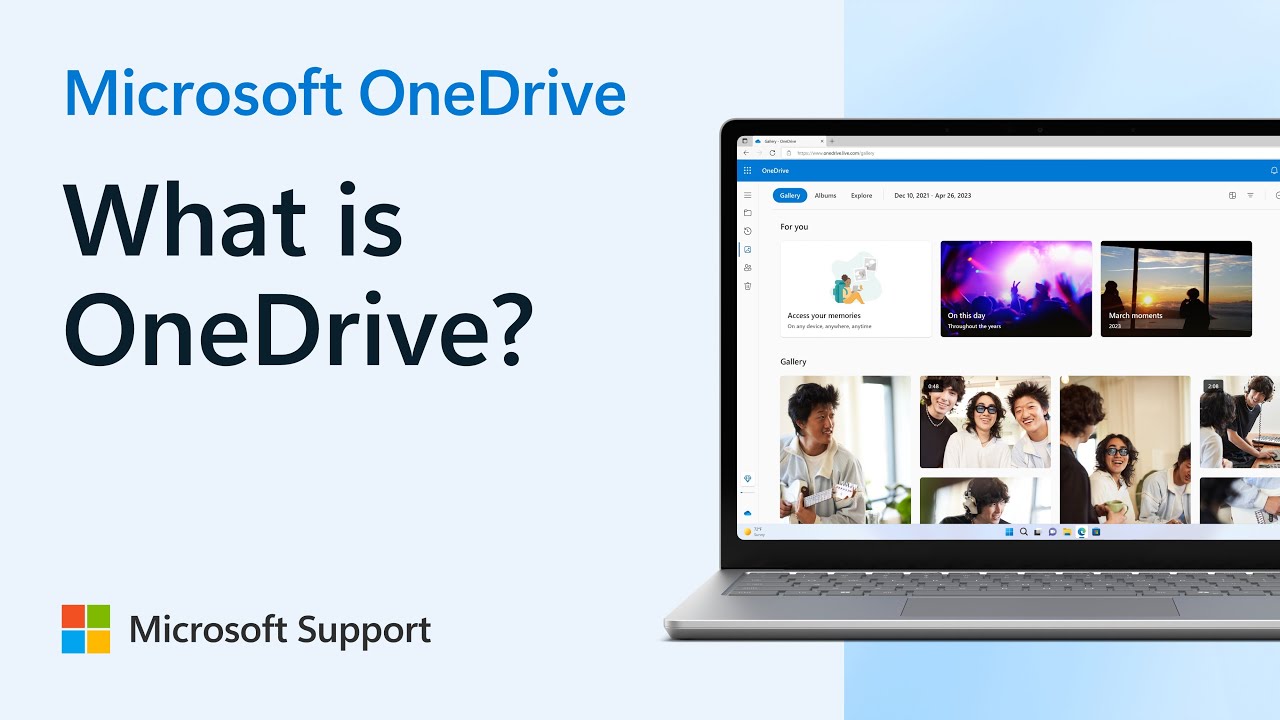
OneDrive is Microsoft’s cloud-storage and file-synchronisation service.
In simple terms, it lets you store files online and access those files from different devices.
For example, imagine you are working on a laptop in Lagos and save a Word document to your OneDrive folder. Later, you can open that document from your phone or another computer after signing into the same Microsoft account.
Instead of keeping everything exclusively on one hard drive, OneDrive gives you a cloud copy that can follow you across supported devices.
That is particularly useful when you regularly move between a laptop, desktop computer and smartphone.
Microsoft also integrates OneDrive deeply into Windows. Your OneDrive files can appear directly inside File Explorer, which makes the service feel more like part of the operating system than a separate website.
Microsoft describes OneDrive as cloud storage that allows users to access, share, edit and sync files across devices.
OneDrive Storage: How Much Do You Actually Get?
Storage is one of the first things I would check before choosing any cloud-storage service.
Microsoft’s current personal storage options include:
| Plan | Storage | Best For |
|---|---|---|
| Free Microsoft account | 5 GB | Basic files and occasional backups |
| Microsoft 365 Basic | 100 GB | Individual users who need more cloud storage |
| Microsoft 365 Personal | 1 TB | Heavy individual users and Microsoft Office users |
| Microsoft 365 Family | Up to 6 TB total | Families and multiple users |
Microsoft currently lists the free personal allowance at 5 GB. Microsoft 365 Basic provides 100 GB, while Microsoft 365 Personal and Family provide 1 TB per person.
One thing I like here is that Microsoft does not treat storage as completely separate from its productivity ecosystem.
If you subscribe to Microsoft 365 Personal, for example, you do not just receive 1 TB of OneDrive storage. You also receive access to Microsoft applications such as Word, Excel, PowerPoint, Outlook and OneNote, along with other subscription benefits.
Is 5 GB of Free OneDrive Storage Enough?
For basic documents, yes.
For serious photo and video storage, probably not.
If you mostly store Word documents, PDFs, school assignments, CVs, spreadsheets and small work files, 5 GB can last quite a while.
However, smartphones make it extremely easy to accumulate large numbers of photos and videos. A few long videos can consume hundreds of megabytes or more.
That means the free plan can feel restrictive surprisingly quickly.
If you regularly create content, edit videos, store phone photos, maintain website backups or work with large design files, I would not choose a cloud-storage plan based solely on the free 5 GB allowance.
You should think about how much data you actually generate every month.
Microsoft 365 Personal: Where OneDrive Becomes More Interesting
This is where I think OneDrive becomes more compelling.
Microsoft 365 Personal currently includes 1 TB of cloud storage for one person, along with desktop Microsoft 365 applications and other features. Microsoft lists the US price at $99.99 per year or $9.99 per month, although actual pricing can vary by market, taxes, currency and promotions.
For a person who already needs Word, Excel and PowerPoint, the package makes more sense than buying cloud storage alone.
For example, a student could keep assignments and research documents in OneDrive while using Word for writing.
A freelancer could store proposals, spreadsheets and client documents there.
A blogger could keep article drafts, images, PDFs and project folders synchronised across devices.
A small business owner could use OneDrive alongside Microsoft 365 for documents and collaboration.
This is one of OneDrive’s strongest selling points: the value is not just the storage.
OneDrive Files On-Demand
One of my favourite OneDrive features is Files On-Demand.
The basic idea is simple.
You can see your OneDrive files inside File Explorer without necessarily downloading every file onto your computer.
That matters because your cloud storage and your laptop’s physical storage do not have to be identical.
Suppose you have 500 GB of files stored in OneDrive but only a 256 GB SSD in your laptop. You obviously cannot keep every file downloaded locally.
Files On-Demand allows you to work with files stored in the cloud while keeping your local storage under control.
Microsoft says Files On-Demand lets users view, search and interact with OneDrive files from File Explorer without downloading all of them to the device.
This is especially useful for laptops with smaller SSDs.
If you are considering a laptop for work or blogging, you can also read my guide to the best laptops for professional writers and bloggers in Nigeria.
OneDrive Sync Performance
Cloud storage performance is not just about how fast a company says its servers are.
Your real-world experience depends on several things:
- Your internet connection
- Network congestion
- File size
- Number of files
- Your computer’s storage drive
- CPU and RAM
- OneDrive configuration
- Whether files are online-only or stored locally
For normal documents and everyday files, OneDrive can feel almost invisible when synchronisation is working correctly.
You save a file, OneDrive synchronises it, and you continue working.
Large folders are different.
If you suddenly ask OneDrive to synchronise thousands of files, your computer may spend significant time processing changes.
Microsoft currently recommends keeping the total number of synced items at or below about 300,000 for optimum performance. Microsoft also says support for synchronising up to 1,000,000 items per sync instance is being rolled out in public preview under specific Windows requirements.
That is far beyond what most ordinary users will ever need, but it demonstrates an important point: cloud storage does not mean unlimited practical performance.
How Large Can OneDrive Files Be?
OneDrive is capable of handling much larger files than the average user will probably upload.
Microsoft currently lists a maximum file upload/download size of 250 GB. For files larger than a few gigabytes, Microsoft recommends using the OneDrive sync application rather than relying solely on browser uploads.
That is useful for people working with large video files, archives or other professional files.
Still, storage capacity matters.
A 250 GB maximum file size does not mean a free account has 250 GB of storage.
You could technically have a large-file capability while still having a relatively small overall quota.
OneDrive on Windows
This is where OneDrive has a major advantage.
If you use Windows, OneDrive integrates naturally with File Explorer.
You do not necessarily need to open a browser every time you want to access a cloud file.
Your OneDrive folder can appear alongside your normal folders, allowing you to interact with files in a familiar environment.
Microsoft’s sync documentation explains that OneDrive files appear in File Explorer and that users can choose which folders remain synchronised locally.
For me, this is much more convenient than treating cloud storage as a website that I have to remember to visit.
It also makes OneDrive attractive for people who already work heavily with Windows laptops.
OneDrive on Android and iPhone
OneDrive is also designed for mobile use.
You can access your files from supported Android and iOS devices, upload files, share documents and manage your cloud storage.
That matters in Nigeria because your laptop is not necessarily the device you carry everywhere.
You may create a document on your laptop, leave home, then realise you need the file on your phone.
Instead of sending the document to yourself through WhatsApp or email, you can simply open OneDrive.
This becomes even more useful when you use OneDrive as a central location for important documents.
OneDrive Camera Backup
OneDrive can also be used to back up photos from your mobile device.
This can be convenient, but I recommend paying attention to your storage usage.
Photos and videos can consume your allowance much faster than ordinary documents.
If your phone contains years of photos, you should check what is being uploaded before assuming your free storage will last indefinitely.
Microsoft provides storage-management tools that allow users to see what is consuming space and identify large files.
This is also a good reason to avoid uploading every unnecessary screenshot, duplicate photo and downloaded video.
OneDrive Personal Vault
Personal Vault is another feature worth discussing.
It provides a protected area within OneDrive for important or sensitive files.
Access requires an additional authentication step such as a PIN, fingerprint, face verification or another supported verification method. Microsoft says Personal Vault is available through the web, mobile app and Windows PC for eligible personal plans.
You could use it for documents that you do not want sitting openly inside an ordinary folder.
For example, people may choose to store important personal documents, financial paperwork or identity-related files there.
However, cloud security still depends heavily on your Microsoft account security.
Use a strong password and enable multi-factor authentication.
OneDrive Security
Security is one of the areas where OneDrive has become more sophisticated than simple online file storage.
Microsoft says files stored in OneDrive are encrypted at rest and describes additional security controls around the service.
OneDrive also monitors suspicious account activity and supports features designed to help users recover from certain types of file damage or attacks.
But no cloud service can protect you from every mistake.
If someone gets access to your Microsoft account, the security of the account becomes extremely important.
That is why I would strongly recommend enabling two-step verification and using a strong, unique password.
Microsoft itself recommends two-factor verification as part of protecting a OneDrive account.
You can also read my existing guide on cybersecurity in Nigeria and how to stay safer online for broader account-security advice.
OneDrive Ransomware Detection and File Recovery
This is one of the features that makes cloud storage more than just a backup folder.
Microsoft provides ransomware detection and recovery capabilities for eligible Microsoft 365 users.
If Microsoft detects a ransomware attack, the service can notify you and guide you through the process of cleaning affected devices and restoring your OneDrive data.
Microsoft also documents the ability to restore OneDrive to an earlier point after certain malicious attacks or data-loss events for eligible subscribers.
That does not mean you should stop thinking about backups.
It simply gives you another layer of protection.
I would still keep especially important business or personal files in more than one location.
Version History
Have you ever edited a document and later realised that you actually preferred the previous version?
That is where version history becomes useful.
Instead of having only the latest copy, supported OneDrive files can retain previous versions that you can restore.
This can be particularly helpful when working on documents that change frequently.
For example, imagine that you have a business proposal and accidentally make major changes that ruin the formatting.
If an earlier version is available, you may be able to restore it instead of rebuilding the document from scratch.
Sharing Files With OneDrive
Sharing is another major part of the OneDrive experience.
You can share files and folders with other people rather than downloading the file and sending another copy.
That is particularly useful for collaboration.
For example, if you are working on a school project, business document or article with another person, you can share access rather than repeatedly exchanging attachments.
Microsoft also offers additional sharing controls on supported plans, including password-protected and expiring links.
That gives you more control than simply posting a permanent public link everywhere.
OneDrive and Microsoft Word
This is probably OneDrive’s biggest advantage over many standalone cloud-storage services.
OneDrive and Microsoft Office work extremely well together.
When you create a Word document and save it to OneDrive, you can access it from other devices and continue working.
The same concept applies to Excel and PowerPoint.
This is particularly useful if your work revolves around Microsoft Office.
For example, I could start an article outline on my laptop, open it from another device later, make changes, and continue without having to manually transfer the file.
Microsoft 365 Personal currently includes desktop Word, Excel, PowerPoint and OneNote alongside OneDrive storage.
OneDrive for Students
Students can get considerable value from OneDrive.
Think about the number of documents a student can accumulate:
- Assignments
- Lecture notes
- Research papers
- PDF textbooks
- Presentations
- Spreadsheets
- Project files
- Certificates
Keeping everything on one laptop creates a single point of failure.
If the laptop develops a serious problem, gets lost, or the storage drive fails, important files can become difficult to recover.
Cloud storage gives students another copy that they can access from other devices.
I also recommend reading my guide on why cloud storage can be safer than USB sticks for students in Nigeria.
For students who need a device specifically for schoolwork, my guide to the best tablets for students in Nigeria may also help when comparing hardware options.
OneDrive for Bloggers and Content Creators
OneDrive can also fit neatly into a content-creation workflow.
A blogger might have folders for:
- Article drafts
- Images
- Research documents
- SEO notes
- Contracts
- Invoices
- Brand assets
- Video projects
Instead of keeping everything on one laptop, OneDrive can become a central workspace.
This is especially useful when you work across multiple devices.
If you are building an online business, my guide on creating your own website in 2026 also covers the broader infrastructure involved in building an online presence.
OneDrive for Freelancers
Freelancers can use OneDrive for client documents, project folders and deliverables.
Imagine that you are a graphic designer working on several projects.
You could have a separate folder for each client and keep project files organised inside OneDrive.
A writer could do the same with articles and documents.
A virtual assistant could store spreadsheets, reports and working documents.
For someone working remotely, having files available across devices can remove unnecessary friction.
If you are interested in remote work, you can also read my guide on using a laptop to work as a virtual assistant in Nigeria.
OneDrive for Small Businesses
Small businesses can also use OneDrive as part of their document-management workflow.
However, this is where I would distinguish between personal OneDrive and OneDrive for work or school.
Microsoft’s business version is designed to work within Microsoft 365 organisational environments and provides storage, synchronisation, sharing and collaboration features. Microsoft’s documentation lists OneDrive across business, enterprise, education and other organisational plans.
If your business has several employees, you should therefore look beyond simply buying personal accounts.
You may need proper organisational administration, permissions and collaboration controls.
OneDrive Performance in Nigeria
Now we get to the part I think Nigerian users should pay particular attention to.
OneDrive’s performance is heavily dependent on your internet connection.
The service itself may be perfectly capable, but a slow or unstable connection can make synchronisation frustrating.
This becomes particularly noticeable when uploading large videos or downloading large folders.
For everyday Word documents and smaller files, the experience is usually much easier.
If you regularly work online, your internet provider matters.
You can compare options in my guide to the best internet service providers in Nigeria for speed, stability and value.
You may also want to consider how you use mobile data. Uploading hundreds of videos over a mobile connection can consume a significant amount of data.
For large synchronisation jobs, Wi-Fi or an appropriate fixed connection may make more sense.
OneDrive and Laptop Storage
OneDrive becomes particularly useful when your laptop has limited storage.
Modern laptops often use SSDs because they are faster and more responsive than traditional hard drives.
However, an affordable laptop may come with a relatively small SSD.
Files On-Demand can help because you do not necessarily need every cloud file stored locally.
If you are still deciding between storage types, my HDD vs SSD comparison explains the practical differences.
I would also recommend checking the laptop’s RAM, processor, battery and upgrade options rather than choosing a laptop based on one specification alone.
Does OneDrive Replace a Physical Backup?
No.
This is an important distinction.
Cloud synchronisation and backup are related, but they are not exactly the same thing.
If you accidentally delete a file and that deletion synchronises across devices, simply having the file in a synced folder does not automatically mean you have a completely independent backup.
OneDrive provides useful recovery features such as recycle-bin recovery, version history and ransomware recovery on eligible plans, but I still recommend maintaining another backup for files that would be extremely difficult to replace.
For example, important business records could have a cloud copy plus a separate offline backup.
OneDrive Storage Management
Storage management becomes important as your account grows.
Microsoft notes that OneDrive storage is part of the broader Microsoft cloud-storage quota for personal accounts, which can include OneDrive files and photos as well as certain Outlook-related data.
This is something many users do not realise until they suddenly receive a storage warning.
If your storage becomes full, Microsoft says OneDrive can stop allowing new uploads, edits or synchronisation until you free space or increase your quota.
Therefore, do not wait until your account is completely full.
Periodically remove:
- Duplicate files
- Old videos
- Unused ZIP archives
- Unnecessary screenshots
- Old installers
- Files you no longer need
Also remember that the OneDrive recycle bin can contribute to storage usage. Microsoft specifically recommends checking and emptying it when you need to free space.
What I Like About Microsoft OneDrive
- Excellent Windows integration: OneDrive works naturally with File Explorer.
- Files On-Demand: You can keep cloud files available without downloading everything.
- Strong Microsoft 365 integration: Word, Excel and PowerPoint work naturally with OneDrive.
- 1 TB option: Microsoft 365 Personal gives one user a substantial amount of cloud storage.
- Personal Vault: Sensitive files can receive an additional authentication layer.
- Version history: Previous versions can help recover from unwanted edits.
- Ransomware recovery: Eligible Microsoft 365 users receive additional recovery capabilities.
- Cross-device access: Files can follow you between supported computers and mobile devices.
- File sharing: Sharing documents and folders is straightforward.
What I Don’t Like About OneDrive
- Only 5 GB free: Heavy users can fill it quickly.
- Internet dependency: Large uploads and downloads can be frustrating on unstable connections.
- Storage can fill unexpectedly: Photos, videos and other Microsoft cloud data can consume your quota.
- Microsoft 365 can become expensive over time: Subscription costs add up if you only need storage.
- Sync can become complicated: Users with huge numbers of files need to understand online-only and locally available files.
- Not a complete replacement for every backup strategy: Important data should still have independent backups.
OneDrive vs Google Drive
For many users, the real competition is not Dropbox.
It is Google Drive vs OneDrive.
Google Drive makes a lot of sense if your digital life revolves around Gmail, Google Docs, Google Sheets, Google Photos and Android.
OneDrive makes more sense if your workflow revolves around Windows, Microsoft Word, Excel, PowerPoint and Microsoft 365.
Neither is automatically the best for everyone.
Your existing ecosystem should influence the decision.
If you already use Microsoft Office every day, OneDrive becomes much more attractive because the services complement one another.
Is Microsoft OneDrive Good for Nigerian Users?
Yes.
I think OneDrive is particularly useful for Nigerians who work across multiple devices or need a reliable way to keep important documents accessible.
It can be useful for:
- Students
- Bloggers
- Freelancers
- Remote workers
- Small-business owners
- Writers
- Developers
- Teachers
- Researchers
- Content creators
The biggest local consideration is connectivity.
If your internet connection is unreliable, you need to plan your syncing carefully.
Use offline availability for files you need when there is no connection.
Also avoid unnecessarily syncing enormous folders if you have limited bandwidth or a laptop with limited storage.
Can You Use OneDrive to Sell Digital Products?
This is where I want to make an important distinction.
OneDrive can store your digital products, but I would not treat ordinary OneDrive sharing links as a complete digital-product sales system.
If you are selling an ebook, course, PDF guide, template or other digital product, you need to think about payment, delivery, customer access, refunds and product management.
For example, if you are creating educational materials or digital guides for Nigerian customers, you could keep your master files organised in OneDrive while using a dedicated platform for the actual sale and delivery.
That is one reason I have been looking at platforms such as Selar for selling digital products in Nigeria.
A sensible workflow could look like this:
- Create and edit your digital product.
- Keep the working/master copy securely organised.
- Prepare the final customer version.
- Use a proper sales platform to handle the transaction.
- Deliver the purchased product through the platform’s supported system.
- Keep your master and backup copies organised separately.
If you are building a digital-product business, do not confuse cloud storage with digital commerce.
OneDrive solves the storage and file-access problem.
A sales platform solves a different problem.
How OneDrive Can Fit Into a Selar Workflow
For someone selling ebooks, guides, templates or other digital products through Selar, OneDrive can be useful behind the scenes.
For example, you might organise your files like this:
- Digital Products
- Published Products
- Product Images
- Marketing Materials
- Updated Versions
- Original Source Files
- Customer Support Documents
Then your sales platform can handle the customer-facing transaction while OneDrive helps you manage your internal files.
This approach is much cleaner than keeping every important business file on only one laptop.
If you are interested in creating an online business around digital products, my guide on making money online by selling digital products is also relevant.
You can also explore the Infolandia Bookstore if you are interested in the broader idea of selling educational and digital resources online.
Should You Pay for Microsoft OneDrive?
My answer depends on what you already use.
Choose the free plan if:
- You only need a small amount of cloud storage.
- You mainly store documents.
- You are testing OneDrive.
- You rarely work with large files.
Consider Microsoft 365 Basic if:
- You need more than 5 GB.
- You mainly want additional cloud storage.
- You do not need the full Microsoft 365 desktop application bundle.
Consider Microsoft 365 Personal if:
- You use Word, Excel and PowerPoint regularly.
- You want 1 TB of cloud storage.
- You work across several devices.
- You want additional Microsoft 365 features alongside OneDrive.
Consider Microsoft 365 Family if:
- Several people in your household need storage.
- You want separate storage allocations for multiple users.
- You already use Microsoft 365 applications.
Microsoft currently lists Microsoft 365 Family as providing up to 6 TB total, with 1 TB per person for up to six people.
My OneDrive Performance Verdict
For everyday files, I would rate OneDrive highly.
The biggest advantage is not that it magically makes your internet faster. It does not.
The advantage is that it creates a convenient bridge between your devices.
Your laptop can work with the files.
Your phone can access them.
Microsoft Office can work with them.
Your files can remain available in the cloud while Files On-Demand helps reduce unnecessary local storage usage.
For a Windows-heavy workflow, that combination is hard to ignore.
Microsoft OneDrive: Final Rating
| Category | Rating |
|---|---|
| Windows integration | 9.5/10 |
| Microsoft 365 integration | 9.5/10 |
| File syncing | 9/10 |
| Security features | 9/10 |
| Mobile experience | 8.5/10 |
| Free storage | 6.5/10 |
| Paid value | 8.5/10 |
| Overall | 9/10 |
Final Verdict: Should You Use Microsoft OneDrive?
After looking at the storage, features, security and performance, I think Microsoft OneDrive is one of the strongest choices for people already invested in the Microsoft ecosystem.
Its biggest strength is integration.
OneDrive is not simply a website where you upload files. It can become part of how you use your Windows PC.
Files On-Demand helps manage local storage. Microsoft 365 integrates Word, Excel and PowerPoint with the cloud. Personal Vault provides an additional layer for important files. Version history and recovery features provide protection against some common mistakes and attacks.
The free 5 GB allowance is the biggest weakness.
If you take lots of photos, record videos, create large files or run a digital business, you will probably outgrow it.
However, once you look at Microsoft 365 as a complete package rather than simply paying for storage, the value becomes more interesting.
For a Nigerian student, freelancer, blogger, remote worker or business owner who already uses Microsoft applications, OneDrive can be a practical part of a broader digital workflow.
My advice is simple: do not choose cloud storage based on storage capacity alone.
Look at the applications you already use, how many devices you have, how much data you generate, your internet connection, your backup strategy and whether you need the additional Microsoft 365 tools.
If those things line up with your needs, OneDrive is absolutely worth considering.
Frequently Asked Questions About Microsoft OneDrive
Is Microsoft OneDrive free?
Yes. A free Microsoft account includes 5 GB of cloud storage. Paid Microsoft 365 plans provide larger storage allowances and additional features.
How much OneDrive storage do you get with Microsoft 365 Personal?
Microsoft currently lists 1 TB of OneDrive cloud storage for one person with Microsoft 365 Personal.
Is OneDrive good for photos?
Yes. OneDrive can store photos and support camera-roll backup, but you should monitor your storage because photos and especially videos can consume your allowance quickly.
Is OneDrive good for students?
Yes. Students can use it to store assignments, research documents, presentations, PDFs and other academic files and access them from multiple devices.
Can OneDrive replace a USB drive?
For many everyday file-access tasks, yes. However, I would not rely on OneDrive as your only backup for irreplaceable files. A separate backup remains a good idea.
Is OneDrive good for Nigerian users?
Yes, particularly for users with a reliable internet connection and Windows or Microsoft 365-based workflows. Large uploads can consume significant bandwidth, so plan your synchronisation accordingly.
Can I use OneDrive to sell digital products?
OneDrive can help you organise and store your digital-product files, but a dedicated sales platform is better suited to payments and customer delivery. OneDrive and a platform such as Selar can therefore serve different roles in the same workflow.
Does OneDrive work on Android?
Yes. Microsoft provides OneDrive support for Android and iOS devices as well as Windows and Mac computers.
What happens if I exceed my OneDrive storage limit?
Microsoft says that when your cloud storage quota is exceeded, OneDrive can stop allowing new uploads, edits or synchronisation until you free space or increase your storage.
Is OneDrive secure?
OneDrive includes encryption, account-security controls, Personal Vault, suspicious-activity monitoring and recovery features. However, you should still secure your Microsoft account with a strong password and two-step verification.
Useful Microsoft Resources
For the latest plan information, Microsoft’s official OneDrive plans and pricing page is the best place to check current subscription options.
Microsoft also maintains official documentation covering OneDrive and Microsoft storage quotas, OneDrive restrictions and limitations, OneDrive security, and ransomware recovery.
Those official resources are worth checking whenever you are making a purchasing decision because Microsoft can change prices, storage allowances and feature availability over time.