If your phone battery seems to disappear faster than it used to, the problem may not be the battery capacity alone. Some everyday habits can make your phone consume power much faster than necessary.
That can become especially frustrating when you depend on your phone for work, school, communication, navigation, social media, photography, or online learning. A phone that starts the day at 100% but reaches 20% before the afternoon can quickly become inconvenient.
The good news is that you may not need to replace your phone immediately. Before spending money on a new device or battery replacement, check how you are using the phone and which apps and settings are consuming the most power.
Both Google and Apple recommend checking battery usage, reducing unnecessary power consumption, managing background activity, avoiding excessive heat, and using built-in battery-saving features when necessary.
Here are the habits you should stop if your phone battery dies too quickly.
1. Stop Keeping Your Screen at Maximum Brightness
Your phone’s display can be one of its biggest sources of power consumption, particularly when you use a large, high-refresh-rate display for long periods.
If your brightness is permanently set near maximum, your phone has to use more energy just to keep the screen visible.
Instead, enable automatic or adaptive brightness where available. You can also reduce brightness manually when you are indoors or in a darker environment.
Apple specifically identifies high screen brightness as a factor that can reduce battery life, while Android recommends reducing brightness or allowing it to adjust automatically.
If you regularly use your phone for long reading sessions, you can also try dark mode where it makes sense for your display and personal preference.
2. Stop Leaving Power-Hungry Apps Running Unchecked
Some applications can consume considerably more battery than others. Video apps, games, navigation applications, cameras, social platforms, and applications that frequently synchronize data can all contribute to high usage.
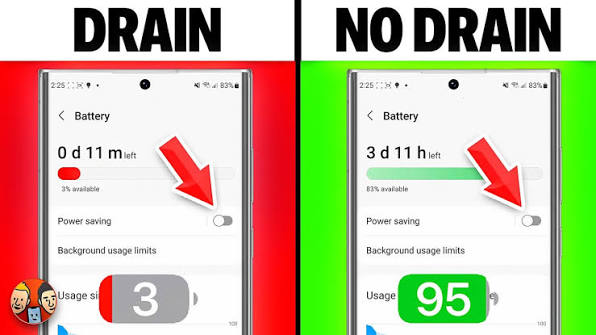
Instead of guessing which application is responsible, check your phone’s battery settings.
On Android, open the battery section in Settings and review which applications are consuming the most power. On iPhone, the Battery section provides a daily usage breakdown that can help you identify unusually high consumption.
If one application consistently consumes an unusually large percentage of your battery, investigate whether it needs to run in the background all day.
3. Stop Leaving Your Mobile Hotspot On
Mobile hotspot or tethering can drain a battery quickly because your phone is simultaneously maintaining a cellular connection and providing an internet connection to another device.
If you only need hotspot access temporarily, turn it off when you finish.
This becomes particularly important when you use your phone as a temporary internet connection for a laptop. Leaving the hotspot active for hours can result in significantly higher battery consumption.
Google lists tethering and hotspots among activities that can increase battery usage.
If you frequently depend on mobile internet, our guide to internet service providers in Nigeria can also help you understand some of the connectivity options available.
4. Stop Using GPS and Location Services When You Don’t Need Them
Location services can be useful for navigation, delivery applications, weather services, ride-hailing, maps, and other location-based features. However, you don’t necessarily need every application to have continuous access to your location.
Review your location permissions and decide which applications actually need them.
For applications that do not require continuous location access, consider selecting an option such as “While using the app” when your phone provides it.
Google specifically recommends limiting location access when it is unnecessary, while Apple recommends using a strong signal or Airplane Mode in areas where there is no coverage for an extended period.
5. Stop Using Your Phone in Excessive Heat
Heat is one of the biggest things you should take seriously when caring for a smartphone battery.
A hot phone may drain faster, and repeated exposure to excessive temperatures can affect long-term battery health.
Google advises users to keep their devices cool because batteries can drain faster when hot. Apple also warns that high temperatures can permanently reduce battery lifespan.
That means you should avoid leaving your phone in direct sunlight for extended periods. Be particularly careful when leaving a phone inside a hot vehicle or using demanding applications while the device is already very warm.
If your phone becomes unusually hot while charging, give it time to cool and check whether the charger, cable, case, application, or environment is contributing to the heat.
6. Stop Gaming for Hours While Your Phone Is Overheating
Gaming can place significant demands on a phone’s processor and graphics hardware. High-performance games can also keep the display active for long periods.
That combination can increase power consumption and temperature.
You do not necessarily have to stop gaming altogether. Instead, pay attention to how hot your device becomes and avoid continuing demanding tasks when the phone is already excessively warm.
Google lists graphics-heavy games among activities that can consume substantial battery power.
If gaming is one of your main uses, you may also want to understand the hardware requirements before buying your next phone. Our smartphone requirements for gaming guide explains the importance of processor performance, RAM, display, cooling, and battery capacity.
7. Stop Assuming a Bigger Battery Means You Can Ignore Power Consumption
A 5,000mAh or 6,000mAh battery can provide excellent endurance, but battery capacity alone does not determine how long a phone lasts.
Display brightness, processor efficiency, network conditions, application activity, refresh rate, camera usage, GPS, and background synchronization all influence battery consumption.
That is why two phones with similar battery capacities can deliver very different real-world battery life.
When buying a new phone, consider the complete package rather than looking only at the number printed next to “mAh.”
You can compare current smartphone options with our best smartphones to buy in Nigeria guide.
8. Stop Leaving Every App’s Notifications Enabled
Notifications can wake your screen, trigger sounds or vibrations, and cause you to interact with your phone repeatedly.
One notification is not going to destroy your battery. However, dozens or hundreds of unnecessary notifications throughout the day can contribute to unnecessary activity.
Review your notification settings and disable alerts that you do not need.
Apple’s current battery guidance specifically notes that notifications can wake the device and affect battery usage.
Keeping only useful notifications can also make your phone less distracting.
9. Stop Keeping Bluetooth and Other Connections Active Without a Reason
Modern phones manage wireless connections efficiently, so you do not need to obsessively switch every setting off. However, certain features can consume additional power when actively being used.
For example, a phone connected to accessories, mobile hotspots, GPS services, or other demanding connections may use more power than a device performing simple offline tasks.
Google recommends limiting connectivity and location features when they are not needed, while Apple notes that Wi-Fi and Bluetooth are designed to use relatively little power when they are not actively connected.
The practical approach is simple: leave the features you regularly use enabled, but turn off unnecessary connections when you know you will not need them.
10. Stop Using Cheap or Unreliable Chargers
Your charger is not something you should choose solely because it is inexpensive.
Use a charger and cable that are appropriate for your phone and come from a reliable manufacturer or meet the relevant standards for your device.
Google recommends using the power adapter supplied with the phone or following the manufacturer’s charging guidance because unsuitable adapters may charge slowly or cause problems.
Apple also builds charging protections into its devices, including charging optimization and temperature-based protections.
If your phone becomes unusually hot while charging, charging repeatedly disconnects, or the cable is physically damaged, replace the problematic accessory instead of continuing to use it.
11. Stop Trying to Drain Your Battery to 0% All the Time
There is an old idea that you should regularly drain a modern smartphone battery completely before charging it again. That is not necessary for today’s lithium-ion smartphone batteries.
Google states that you do not need to repeatedly take an Android battery from full to zero to “teach” it its capacity. Apple likewise explains that partial charging does not harm an iPhone battery.
In normal use, charge your phone when convenient rather than deliberately waiting until it reaches 0% every time.
Some newer phones also include charging optimization or charge-limit features designed to reduce the amount of time the battery spends fully charged. Google’s Pixel devices, for example, can use charging optimization and an 80% charge limit on supported models.
12. Stop Ignoring Your Phone’s Battery Health Information
If your phone is several years old and its battery suddenly seems terrible, the battery itself may have aged.
Rechargeable batteries naturally lose capacity over time. As the battery ages, the amount of energy it can store can decrease.
On supported iPhones, you can check battery information under Settings > Battery > Battery Health. Apple says that a “Service” indication can mean the battery should be replaced to restore capacity and performance.
Android phones vary by manufacturer, so the exact battery-health menu can be different. Check the battery settings on your particular model or consult the manufacturer’s official support documentation.
What If Your Battery Suddenly Started Draining Fast?
A sudden change is worth investigating.
Start by checking battery usage. Look for an application that recently began consuming an unusually large amount of power.
Then consider whether you recently:
- Installed a new application.
- Updated your operating system.
- Changed your display settings.
- Started using mobile hotspot more often.
- Moved to an area with weak network coverage.
- Started using GPS more frequently.
- Changed your charging accessories.
- Started using a demanding game or camera application more frequently.
Apple notes that battery life can temporarily decrease after a software update while background update-related tasks finish.
On Android, Google also recommends restarting the device and checking for system and application updates when battery problems persist.
Weak Network Signal Can Also Affect Battery Life
This is particularly relevant if you move between locations with different levels of network coverage.
When a phone struggles to maintain a cellular connection, it can use additional energy trying to communicate with the network.
Apple recommends using a device in an area with a strong signal where possible and suggests Airplane Mode when you know you will be somewhere without coverage for a significant period.
So if your battery suddenly performs worse during a trip to a location with poor reception, the network environment may be part of the explanation.
Should You Replace Your Phone?
Not necessarily.
If the phone still performs well and the battery is simply aging, replacing the battery may make more sense than replacing the entire device, depending on the model and repair cost.
On the other hand, an older phone with poor battery health, outdated software support, limited storage, slow performance, and other hardware problems may be reaching the point where replacement becomes more practical.
Our article on 7 signs your phone needs replacement can help you evaluate the situation before spending money on a new device.
Simple Battery-Saving Settings to Check Today
If your phone is losing power too quickly, start with these simple changes:
- Reduce unnecessary screen brightness.
- Enable adaptive or automatic brightness.
- Review battery usage by application.
- Restrict unnecessary background activity.
- Turn off hotspot when you finish using it.
- Review location permissions.
- Reduce unnecessary notifications.
- Use Battery Saver or Low Power Mode when necessary.
- Keep the phone away from excessive heat.
- Install available software and app updates.
- Use reliable charging accessories.
- Check battery health if your device supports the feature.
Google’s Android guidance includes Battery Saver, adaptive battery features, reduced brightness, background-app restrictions, and other measures for extending battery life.
Useful Battery and Smartphone Resources
If you want to get more from your current phone, Infolandia has several related guides that can help.
Our detailed guide on how to extend your smartphone battery life goes further into practical ways to improve everyday battery performance.
If your phone has become slow as well as power-hungry, you can also review our Android features you may not be using guide.
For people considering a replacement, our guide to phones under ₦200,000 in Nigeria is another useful starting point.
Final Thoughts
A phone battery that dies quickly does not always mean that you need a new phone immediately.
Start with the basics. Check battery usage, reduce unnecessary screen brightness, control background activity, manage hotspot and location usage, keep the phone cool, and use the charging features provided by your device.
Most importantly, pay attention to changes. If your battery suddenly starts dropping much faster than normal, investigate what changed instead of simply accepting the problem.
Battery capacity naturally decreases as rechargeable batteries age, so an older phone may eventually need a battery replacement. However, better habits and sensible settings can help you get more useful time from the device you already own.
Recommended Learning Resources
If you are interested in learning more about smartphones, technology, and digital skills, you can also explore relevant courses available through Selar. For example, this collection of 100+ digital courses covers a variety of digital subjects.
For people interested in improving their technical skills, this cybersecurity course collection is another option to investigate.
If productivity software is more relevant to you, you can also check this Microsoft Excel course collection.
These are referral links, so Infolandia may earn a commission if you make a qualifying purchase through one of them. Always review the course description, instructor, price, and learning objectives before purchasing.
Official Battery Guidance
For the most accurate information about your particular device, use the manufacturer’s support documentation rather than relying only on general battery tips.
Google’s Android battery guidance explains battery-saving settings, charging, heat, connectivity, and troubleshooting.
Apple’s current guidance for iPhone battery drain covers battery usage, brightness, Wi-Fi, Low Power Mode, battery health, and troubleshooting.
For charging and long-term battery care, Apple’s iPhone battery maintenance guide provides additional information about battery lifespan, temperature, and charging practices.
Affiliate disclosure: Some links in this article are affiliate or referral links. If you purchase a product or course through one of these links, Infolandia may receive a commission at no additional cost to you. Affiliate links are included only where they are relevant to the subject. Always check the product or course details and decide whether it meets your needs before purchasing.