However, Windows user accounts do much more than provide a name on the login screen. They determine what you can change on the computer, which files and settings you can access, whether you can install certain software, and how your personal information is separated from other users.
This becomes especially important if you share a laptop with family members, use the same computer for work and personal activities, manage a business computer, or regularly install applications.
In this guide, I will explain Windows user accounts in simple terms, including administrator accounts, standard accounts, Microsoft accounts, local accounts, work or school accounts, permissions, account security, and practical ways to manage multiple users on Windows 10 and Windows 11.
If you are using an older laptop, don’t assume that the age of the laptop automatically means the account system is outdated. For example, I have covered different laptop generations and models on Infolandia, including guides on whether laptop generation influences quality. The Windows account system is a separate issue from the hardware generation.
What Is a Windows User Account?
A Windows user account is an identity created for someone who uses a Windows computer.
Think of it as your personal doorway into the computer. When you sign in, Windows loads settings and files associated with that account. If another person signs in with another account, Windows can load a different desktop, settings, and personal files.
Microsoft explains that Windows allows multiple users to share one computer while keeping their settings, documents, and applications associated with their individual accounts.
This is useful in several situations.
- A family shares one laptop.
- Two students use the same computer.
- You use one laptop for personal and work activities.
- A small business has several people using one PC.
- You want a separate account for a child.
- You want to reduce the risk of giving another person administrator access.
Instead of everyone using the same login, you can create separate accounts and give each person the appropriate level of access.
Why Windows User Accounts Matter
You might wonder why you should care about account types when you can simply create one password and use the computer.
The answer is control and separation.
Suppose you have a laptop that you use for freelance work, school, browsing, banking, content creation, and personal files. If another person regularly uses that same account, they could potentially change settings, access files, install applications, or alter your working environment.
Separate accounts give Windows a way to distinguish between users.
Microsoft specifically recommends limiting the number of administrator accounts because administrators have extensive control over a Windows computer. Standard accounts are generally safer for everyday activities.
This is one of those Windows features that many people ignore until something goes wrong.
If you are also interested in protecting personal information on your laptop, you may find my guide on password-protecting files and folders on a Windows laptop useful.
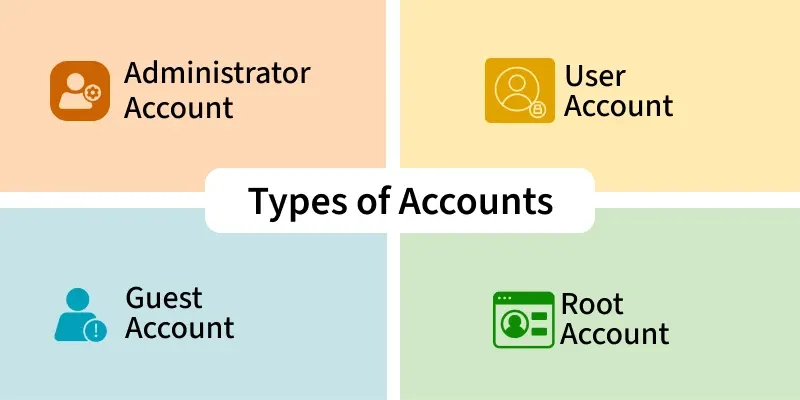
The Main Types of Windows User Accounts
There are several ways to classify Windows accounts, and this is where beginners can become confused.
First, there is the distinction between:
- Administrator accounts
- Standard user accounts
Then there is another distinction between:
- Microsoft accounts
- Local accounts
- Work or school accounts
These categories describe different aspects of an account.
For example, you can have a Microsoft account that has administrator privileges. You can also have a local account configured as a standard user.
So don’t think of Microsoft account and administrator account as two competing account types. They describe different things.
What Is an Administrator Account?
An administrator account has elevated control over the Windows computer.
An administrator can perform tasks that a standard user normally cannot perform without approval.
Depending on the system configuration, administrator privileges can allow a user to:
- Install and remove software.
- Change important Windows settings.
- Manage other user accounts.
- Change account types.
- Modify system-wide settings.
- Access protected areas of the operating system.
- Make changes that affect other users.
This level of control is useful when you own and manage the computer.
However, it also means that administrator access should not be handed out casually.
Microsoft recommends keeping the number of administrators limited because an administrator has extensive control over the system.
When Should You Use an Administrator Account?
You may need administrator privileges when you are:
- Setting up a new Windows computer.
- Installing trusted software.
- Managing Windows settings.
- Creating or changing other accounts.
- Managing a personal computer that you own.
- Troubleshooting certain system problems.
That does not mean you should give administrator privileges to everybody who uses your laptop.
What Is a Standard User Account?
A standard account provides everyday access without giving the user unrestricted control over the computer.
This is useful when someone needs to use your computer but does not need to manage the operating system.
For example, imagine that your younger sibling wants to use your laptop for schoolwork. You could create a separate standard account instead of allowing them to use your administrator account.
The same idea can apply to employees or temporary users on a business computer.
A standard account can still do normal things such as:
- Browse the web.
- Use supported applications.
- Create documents.
- Watch videos.
- Use school applications.
- Store personal files within its profile.
However, Windows can request administrator approval when a task requires elevated permissions.
Administrator vs Standard User
| Feature | Administrator | Standard User |
|---|---|---|
| Use everyday applications | Yes | Yes |
| Install many system-wide applications | Generally yes | May require administrator approval |
| Manage other users | Yes | Normally limited |
| Change important system settings | Broad access | More restricted |
| Suitable for everyday use | Possible | Often preferable when elevated privileges aren’t needed |
| Potential impact of mistakes | Higher | More limited |
The important point is not that administrator accounts are bad. They are necessary for managing Windows. The point is that more privileges mean more responsibility.
What Is a Microsoft Account?
A Microsoft account is a personal account connected to Microsoft’s online services.
You may already have one if you use services such as Outlook.com, OneDrive, Microsoft 365, Xbox, or other Microsoft services.
Microsoft says a Microsoft account can connect Windows with its cloud services and can allow settings and files to sync across devices.
This can be convenient if you regularly use Microsoft’s ecosystem.
For example, you may sign into a Windows laptop with your Microsoft account and then use OneDrive, Microsoft Store applications, Microsoft 365 and other supported services without maintaining completely separate identities for each service.
What Is a Local Windows Account?
A local account is created specifically on the computer.
It does not depend on a Microsoft account to exist.
Microsoft describes a local account as an account specific to one device. Its settings, files, and applications are primarily associated with that computer rather than Microsoft’s cloud ecosystem.
This can make local accounts attractive to users who prefer keeping their Windows sign-in separate from online services.
However, there are trade-offs.
A Microsoft account can provide easier integration with Microsoft’s online services and synchronization features. Microsoft currently recommends using a Microsoft account when signing into Windows.
Microsoft Account vs Local Account
| Area | Microsoft Account | Local Account |
|---|---|---|
| Works specifically on one PC | No | Yes |
| Microsoft cloud integration | Strong | Limited |
| Can use Windows | Yes | Yes, depending on Windows setup |
| OneDrive integration | Convenient | Can be used separately |
| Requires Microsoft online identity | Yes | No |
| Useful for Microsoft ecosystem users | Yes | Less integrated |
What Is a Work or School Account?
A work or school account is different from a personal Microsoft account.
Microsoft explains that work or school accounts are typically created and managed by an organization using Microsoft business or education services.
For example, your school or employer may give you an organizational account that allows you to access:
- Microsoft 365.
- Company or school email.
- Organizational files.
- Teams.
- SharePoint.
- Other organization-controlled resources.
The organization may also apply policies to the device or account.
This is why you should understand what you are connecting to your Windows computer. A work or school account can involve organizational management that is different from simply adding another personal email address.
Personal Microsoft Account vs Work or School Account
Microsoft’s distinction is straightforward: personal Microsoft accounts are designed for personal use, while work or school accounts are created within an organization.
For example:
- Personal: your personal Outlook account.
- Work: an account provided by your employer.
- School: an account provided by your educational institution.
You can potentially use several of these identities on one Windows computer, depending on your needs and the policies applied to the device.
Why You Should Not Share One Windows Account With Everyone
This is one of the biggest mistakes people make with shared computers.
Imagine that you and three other people use the same Windows account.
Someone downloads a file. Someone else changes the desktop. Another person installs an application. Someone accidentally deletes a folder.
Now you have to figure out who did what.
Separate accounts make the computer much easier to organize.
Microsoft specifically notes that separate accounts can help keep personal, work, and school activities separated while protecting individual files and settings.
If your computer is used for work, this becomes even more important. You may have sensitive documents, client information, website credentials, business files, or financial records stored on the device.
For example, if you work online, your laptop may contain files related to websites, digital marketing, content creation, or online businesses. I have also written about using a laptop to work as a virtual assistant in Nigeria, and that type of work often involves files and accounts that should not be mixed casually with another person’s computer activity.
How Windows User Profiles Work
When you create a user account, Windows creates a user environment associated with it.
That environment can include:
- Desktop settings.
- Documents.
- Downloads.
- Pictures.
- Saved preferences.
- Application settings.
- Browser profiles and related data.
This is why two people can use the same laptop and still have different desktop arrangements.
It is similar to having separate rooms in the same house. The building is the same, but each person’s space has its own organization and belongings.
Can Other Users See My Files?
Windows provides separation between user profiles, but you should not treat a separate account as an absolute substitute for proper security.
Permissions, administrator access, shared folders, encryption, applications, and other system configurations can affect what users can access.
For particularly important information, use additional security measures rather than relying only on separate accounts.
For example, you can learn more about protecting important information in my guide on protecting important files, while Windows users can also apply the broader principle of reducing unnecessary access to sensitive information.
How to Add a New User Account in Windows 11
Microsoft provides a straightforward method for adding users through Settings.
On Windows 11:
- Open Settings.
- Select Accounts.
- Open Other users.
- Select Add account.
- Follow the instructions shown on screen.
Microsoft notes that you can add someone using their Microsoft account or create a local account by selecting the appropriate option during setup.
The exact wording and available options can change with Windows updates, so the labels on your computer may not look exactly the same as older tutorials.
How to Change an Account From Standard to Administrator
If you have administrator access, Windows allows you to change the account type of another user.
The general process in Windows 11 is:
- Open Settings.
- Go to Accounts.
- Select Other users.
- Find the account.
- Open its account options.
- Select Change account type.
- Choose the appropriate account type.
- Confirm the change.
Microsoft documents this process and recommends keeping administrator accounts limited.
Don’t change an account to administrator simply because an application asks for elevated privileges. First understand what the application is trying to do.
Why Too Many Administrator Accounts Can Be a Problem
Let’s say five people use one computer and all five accounts are administrators.
Technically, everything may work.
But you have created a situation where every user has a much greater ability to make system-wide changes.
If someone installs unreliable software, changes an important setting, or makes a configuration mistake, the consequences can affect the entire computer.
This is one reason Microsoft recommends limiting administrator accounts.
A practical arrangement for a shared family computer might look like this:
- Owner: Administrator
- Parent: Administrator or Standard depending on responsibilities
- Student: Standard User
- Guest/temporary user: Standard User
The exact arrangement depends on who needs to manage the computer.
Windows User Accounts and Children
Windows accounts can also be useful for families.
Instead of allowing a child to use the same administrator account as a parent, you can create a separate account and use available family-management features.
Microsoft specifically describes using standard accounts alongside parental controls for children.
This provides a better structure because the child can have a personal Windows environment without automatically receiving the same level of system control as the person managing the computer.
Windows Sign-In Methods
Your Windows account is not necessarily protected only by a traditional password.
Windows supports several sign-in options.
Microsoft documents options such as Windows Hello, which can support facial recognition, fingerprint authentication, and PIN-based sign-in, depending on the hardware and configuration of the device. Physical security keys can also be supported.
You can generally find these options under:
Settings → Accounts → Sign-in options
Available options depend on your device.
What Is Windows Hello?
Windows Hello is Microsoft’s sign-in technology for supported Windows devices.
Depending on your hardware, you may be able to sign in using:
- Face recognition.
- Fingerprint.
- PIN.
A compatible laptop may have a fingerprint reader or suitable camera hardware. Not every Windows laptop supports every Windows Hello method.
This is another reason why two laptops running the same version of Windows may offer different sign-in options.
Why Your Windows PIN Is Not Simply “Your Password”
Many Windows users confuse a Windows Hello PIN with their Microsoft account password.
They are not necessarily the same thing.
Windows Hello provides a device-based sign-in experience, and the available configuration depends on the device and account setup.
Microsoft provides additional information about Windows sign-in methods and Windows Hello in its official documentation.
If you are using a laptop in a public or shared environment, having a convenient secure sign-in method can also make it easier to lock the computer whenever you step away.
How to Protect Your Windows User Account
Creating an account is only the first step.
You should also protect it.
1. Use a Strong Password
If your account uses a password, avoid obvious combinations such as your name, birthday, phone number, or a simple sequence.
A long and unique password is generally preferable to a short predictable one.
2. Use Windows Hello When Supported
If your computer supports Windows Hello, consider using an appropriate Windows Hello sign-in method.
Microsoft provides these options through Settings → Accounts → Sign-in options.
3. Lock Your Computer
Don’t leave your laptop unlocked when you walk away.
On Windows, you can quickly lock your session with:
Windows key + L
This is a simple habit, but it can prevent someone nearby from immediately accessing an open desktop.
4. Keep Administrator Access Limited
If someone only needs to browse the web, create documents, or attend online classes, they may not need administrator privileges.
5. Keep Windows Updated
Operating-system updates can include security fixes and other improvements. Keeping Windows current is an important part of basic computer security.
6. Be Careful With Software
An administrator account makes it easier to make system-wide changes. That makes software decisions more important.
Download applications from reputable sources and think carefully before approving unexpected permission requests.
If you are interested in broader online safety, my guide on cybersecurity in Nigeria covers additional security habits.
Windows Accounts and Laptop Performance
Creating another user account does not automatically mean your laptop will become slow.
However, the total software, startup applications, files, background processes, and applications running on the computer can affect performance.
If your laptop already struggles with demanding tasks, account management won’t magically solve the underlying hardware limitations.
Before buying or upgrading a laptop, it is better to consider the processor generation, RAM, storage, battery condition, display, and intended workload together.
For example, my guide on why I stopped buying laptops based on Core i5 alone explains why a processor label by itself doesn’t tell the whole story.
You can also see my broader guide to buying laptops in Nigeria if you are comparing computers.
Windows Accounts for Students
A shared laptop can become much easier to manage when every student has a separate account.
For example:
- Student A has one profile.
- Student B has another.
- A parent or owner manages the administrator account.
Each student can organize their documents and desktop without constantly changing another person’s settings.
If the laptop is being used for schoolwork, cloud storage can also help with file management. I previously explained why cloud storage can be useful for students.
Windows Accounts for Freelancers and Remote Workers
If you work remotely, account separation can be even more useful.
Imagine you use your laptop for:
- Client projects.
- Personal browsing.
- Content creation.
- Online meetings.
- Financial administration.
- Website management.
- Learning new skills.
You may not necessarily need a completely separate Windows account for every activity. However, separating personal and work users can make sense when multiple people share the computer.
For freelancers, the bigger lesson is to keep important work files organized and restrict unnecessary access.
You can also read my guide on using a laptop as a virtual assistant for more ideas about laptop-based remote work.
Windows Accounts for Small Businesses
Small businesses sometimes start with one computer and gradually add more users.
Instead of creating one shared password that everybody knows, consider giving each regular user their own Windows account.
This can make it easier to separate:
- Administrative work.
- Sales activities.
- Customer service.
- Content creation.
- Accounting documents.
- Management tasks.
Businesses should also think about data backups, account recovery, software licensing, and access to sensitive information.
If your business operates online, you may also find my guide on creating a professional website useful.
Windows Accounts and Digital Businesses
There is another connection that people sometimes overlook.
Your Windows computer can become part of your digital business workflow.
You might use it to create:
- Ebooks.
- Templates.
- Courses.
- Checklists.
- Graphics.
- Business documents.
- Digital guides.
Those products can then be sold through an online platform.
For example, Selar is an online commerce platform used by creators and entrepreneurs to sell digital products and other products. Selar’s own guidance describes products such as ebooks, courses, templates, worksheets, memberships, and related digital content.
That means Windows account management can become part of a much bigger workflow: create securely, store your files properly, manage access, publish your product, and sell it online.
Using Selar to Sell a Windows Guide or Digital Product
Suppose you turn your Windows knowledge into a practical PDF guide.
You could structure it around topics such as:
- Windows setup for beginners.
- How to create standard accounts.
- How to protect personal files.
- Windows security checklist.
- Laptop maintenance checklist.
- Windows troubleshooting notes.
You could package the material as an ebook, checklist, mini-course, or another suitable digital product.
Selar’s published guidance explains that creators can upload products, set up their store, share the store link, and receive payments through the platform.
However, don’t confuse having a Selar store with automatically getting customers.
Selar explicitly says merchants are responsible for sharing their product links and marketing their products.
That is why content marketing matters.
A useful article like this one can attract someone searching for a Windows solution. If the reader needs more detailed material, a relevant digital product can become the next step.
For example, if you are interested in selling digital products from Nigeria, you can also explore my existing article about using Selar to sell digital products in Nigeria.
How to Turn Windows Knowledge Into a Digital Product
You don’t need to create a massive course on day one.
Start with one specific problem.
For example:
- “Windows 11 Beginner Setup Checklist”
- “Complete Windows Laptop Security Checklist”
- “Windows File Management for Students”
- “Laptop Maintenance Checklist for Nigerian Students”
- “Windows Productivity Guide for Remote Workers”
The important thing is that the product should provide useful information that is organized better than a random collection of internet searches.
Selar’s own educational material recommends starting with a focused idea, identifying a clear problem, creating the product, gathering feedback, and then marketing it.
If you are learning how to create digital products, my guide on learning copywriting may also help with explaining your product clearly.
Common Windows Account Mistakes
Mistake 1: Giving Everyone Administrator Access
This removes one of the useful security boundaries Windows provides.
Mistake 2: Sharing One Password
One shared account makes it difficult to separate people’s files, settings, and responsibilities.
Mistake 3: Using an Obvious Password
A Windows account should not be protected by information that somebody close to you can easily guess.
Mistake 4: Never Locking the Laptop
An unlocked laptop can expose whatever is currently open on the screen.
Mistake 5: Installing Unknown Software
Account privileges don’t replace good software hygiene. Be careful about what you download and install.
Mistake 6: Forgetting About Account Recovery
Before relying heavily on an account, make sure you understand how you will recover access if you forget your credentials.
Mistake 7: Assuming a New Account Automatically Protects Everything
User accounts are one security layer, not the entire security strategy.
You should still use updates, backups, strong authentication, safe software practices, and appropriate file permissions.
What Happens When You Remove a Windows User?
Windows allows administrators to remove user accounts from a device.
Microsoft notes that removing a user from the Windows device removes the sign-in information and data associated with that device; it does not automatically delete the person’s Microsoft account itself.
This distinction is important.
Removing someone’s Windows profile from your laptop is not necessarily the same thing as deleting their Microsoft identity.
How to Remove a User Account
On supported versions of Windows, you can generally go through:
- Settings
- Accounts
- Other users
- Select the account.
- Choose the option to remove the account.
Before doing this, make sure important files belonging to that user have been backed up or transferred where appropriate.
Deleting an account without checking its files first can create unnecessary problems.
Should You Use a Microsoft Account or Local Account?
There isn’t one answer for every Windows user.
If you use Microsoft’s ecosystem heavily and want cloud integration and synchronization, a Microsoft account may make sense.
If you specifically want an account tied primarily to one computer and don’t need the same cloud integration, a local account may be suitable.
Microsoft currently recommends Microsoft accounts for Windows sign-in, citing integration, security, and synchronization benefits.
The decision should therefore depend on how you use the computer rather than simply following a random online recommendation.
Should Your Everyday Account Be an Administrator?
For many personal computers, the owner may use an administrator account because they need to install software and manage the device.
However, if you are setting up a shared computer, you don’t necessarily need to make every user an administrator.
Microsoft’s own guidance emphasizes limiting administrator accounts and using standard accounts for everyday activities where elevated privileges aren’t required.
Think about the principle of least privilege: give a person enough access to accomplish their legitimate tasks without unnecessarily giving them more control than they need.
Windows User Accounts and Security: A Simple Setup
If I were setting up a shared Windows laptop, I would think about it in layers.
Layer 1: Separate users.
Give regular users their own profiles instead of sharing one login.
Layer 2: Appropriate privileges.
Keep administrator privileges limited to people who actually need them.
Layer 3: Strong authentication.
Use a strong password or supported Windows Hello method.
Layer 4: Software discipline.
Don’t install random applications simply because a website tells you to.
Layer 5: Backups.
Keep important documents backed up. Account separation does not protect you from every possible form of data loss.
Layer 6: Physical security.
Lock the laptop when you walk away and avoid leaving sensitive documents open in public spaces.
Windows Accounts Are More Important Than They Look
At first glance, a Windows user account seems like nothing more than the name you select before the desktop appears.
It is actually one of the basic structures that determines how you interact with the computer.
Your account can determine your access level, personal settings, files, applications, authentication methods, and connection to Microsoft services.
Once you understand the difference between an administrator and standard user, and between Microsoft, local, and work or school accounts, Windows becomes much easier to manage.
More importantly, you can make better decisions when sharing a laptop with family members, setting up a computer for a student, managing a small business PC, or building a work-from-home setup.
Windows User Accounts: Quick Reference
| Question | Simple Answer |
|---|---|
| What is a Windows user account? | An identity used to sign into and personalize Windows. |
| What is an administrator? | A user with broad control over the computer. |
| What is a standard user? | A user with more limited system privileges. |
| What is a Microsoft account? | A personal Microsoft identity connected to Microsoft services. |
| What is a local account? | An account primarily created and managed on one Windows device. |
| What is a work/school account? | An organization-managed identity used for work or education services. |
| Can multiple people use one Windows PC? | Yes. Windows supports multiple user accounts. |
| Should everyone be an administrator? | Usually not; administrator access should be limited to people who need it. |
| Can Windows use a PIN or fingerprint? | Yes, where supported through Windows Hello. |
Frequently Asked Questions About Windows User Accounts
Can two people use the same Windows computer?
Yes. Windows supports multiple user accounts so different people can have separate settings, files, and environments.
Is a Microsoft account the same as an administrator account?
No. A Microsoft account describes how the account is connected to Microsoft’s services, while administrator describes the level of permissions assigned to the Windows user.
Is a local account bad?
No. A local account can be useful when you want an account that is primarily tied to one device. However, Microsoft recommends Microsoft accounts for Windows sign-in because of their integration and synchronization features.
Should children use administrator accounts?
A child generally does not need administrator privileges simply to use a computer for ordinary activities. Windows supports standard accounts and family-management features for appropriate setups.
Can I have more than one Windows account?
Yes. Windows is designed to support multiple users on the same device.
Can I change a standard account into an administrator account?
Yes, if you have the required administrative access. Windows provides an account-type setting for changing the privilege level.
Does removing a Windows account delete the Microsoft account?
No. Removing the account from the device removes its Windows sign-in information and local data from that device; it does not automatically delete the person’s Microsoft account.
Final Thoughts
Windows user accounts are one of those features that are easy to ignore because they work quietly in the background.
But once you share a computer, start working remotely, manage a business, or store important personal information on your laptop, account management becomes much more important.
The basic principle is simple:
Give each person their own account, give them only the access they need, protect the account properly, and keep important information backed up.
For everyday users, understanding the difference between administrator and standard accounts is probably the most important starting point. From there, learn the difference between Microsoft, local, and work or school accounts.
And if your Windows laptop is becoming part of a larger online business, don’t stop at learning how to use the computer. Learn how to turn your knowledge into useful products, guides, templates, or training materials.
Platforms such as Selar can provide the infrastructure for creators to sell digital products, but your knowledge, product quality, marketing, and ability to solve a real problem are what ultimately make the offer useful. Selar itself notes that merchants are responsible for promoting their products and sharing their store or product links.
That is the bigger lesson: technology becomes more valuable when you use it to solve real problems.
Official Resources
For the latest Windows account instructions, check Microsoft’s official documentation because Windows menus and account options can change between versions and updates.